- In the Reports module, click Transaction History.
The Transaction History report is displayed.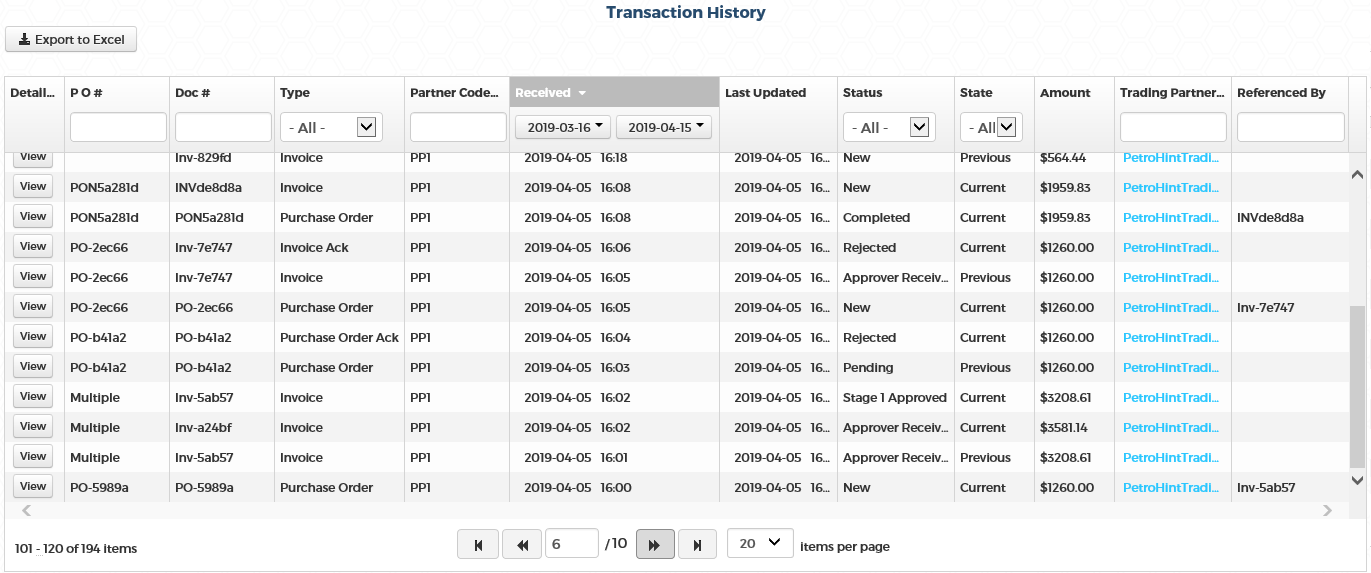
- In the date range area, define the report period by selecting a Start Date and End Date.

- If you know the document #, you can enter it into the Doc # column's search field, and then press the enter key.
This will display that specific document on the grid.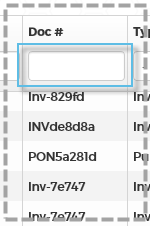
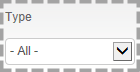
- Select the document Type. You are unable to select more than one type of document.
- Select the document Source you require. This filter is only available when viewing the Transaction History report as a Buyer.

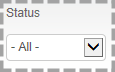
- Select the document Status you require. You are unable to select more than one Status.
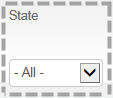
- Select the document State you require. You are unable to select more than one State at a time.
- If you are searching for documents that match specific criteria, you can filter the report by entering information in the search and filter fields at the top of each column.

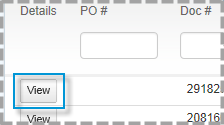
- If you want to preview a specific document displayed in the report, click View in the Details column on the corresponding document row.
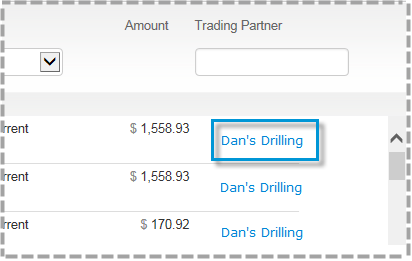
- If you want to view the associated Trading Partner's Company Profile, click their name in the Trading Partner column.
- If there is another document that the document on the selected row was referenced on, that document # can be viewed in the Referenced By column.
The document # can then be entered into the search field of the Doc #column to view that actual document's information.
If there is no document referenced on, then the field will be blank.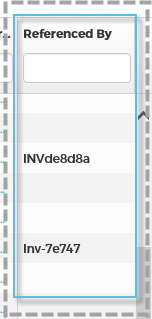
|
NOTE |
This report can be exported.
For information on exporting this report, refer to Exporting This Reports, page 1. |